


 Signing up for Every creates your company in Every, with you as its Company Admin, then opens your company’s application. The sign-up page is app.every.io/v2/signup, and Every’s sign-in page links to it with Sign up.
Before you begin
Signing up always creates a new company. If your company already uses Every, ask one of its Company Admins to add you instead. You need a work email that doesn’t have an Every account yet.Sign up
1
Open the sign-up page
On Every’s sign-in page, select Sign up, or go to app.every.io/v2/signup.
2
Enter your details
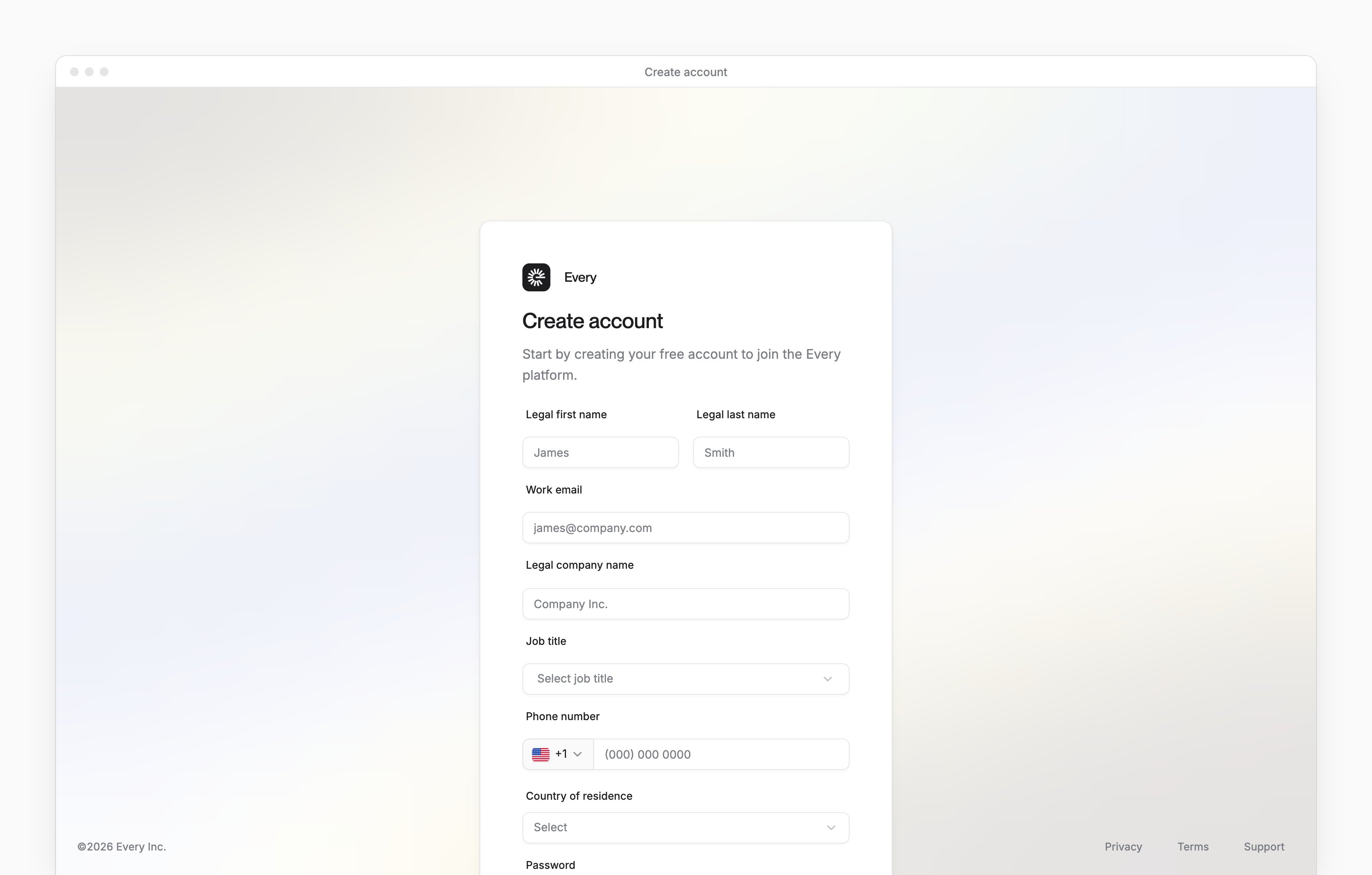
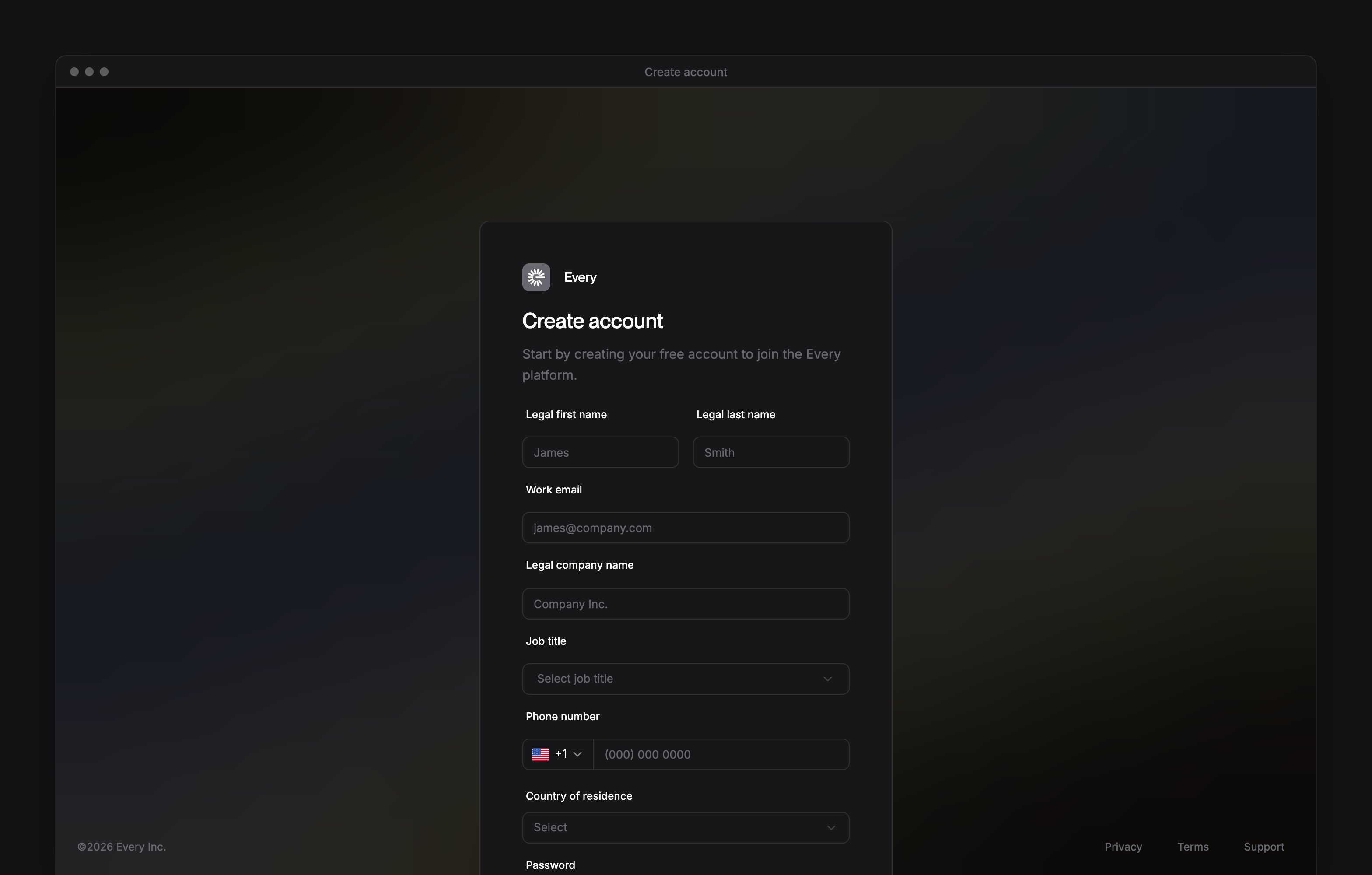
Enter your Legal first name, Legal last name, Work email and Legal company name. Then choose your Job title, enter your Phone number and choose your Country of residence. If you don’t work at the company, choose “I am not an employee” as your job title.
3
Choose a password
Enter it in Password, then again in Confirm Password. It needs at least 8 characters, with at least one lowercase letter, uppercase letter, number and symbol. Spaces aren’t allowed.
4
Create the account
Select Create account. Doing so accepts Every’s Terms & Conditions and Privacy Policy.
5
Verify your email
Every emails a 6-digit code to your work email. Enter it under Confirmation code, then select Continue.
What happens next
Every signs you in and opens your company’s application at its first step, Company Details. Its first question, Have you incorporated yet?, sets what comes next:- No, if you’d like Every to incorporate your company: see Incorporate your company.
- Yes, if your company already exists: see Open a bank account.
Troubleshooting
Why does it say my email is already in use?
Why does it say my email is already in use?
That email already has an Every account, so Every shows “Email already in use. Log in below”. Select Sign in and sign in with it.
Why isn't my password allowed?
Why isn't my password allowed?
Choose a different password. The message starts “This password is not allowed”.
Why does it say my code is invalid?
Why does it say my code is invalid?
Enter the most recent code Every emailed you. Every shows “Invalid code”.
What if my code has expired or never arrived?
What if my code has expired or never arrived?
Select Resend code, then enter the newest code. You can ask for another after 60 seconds. An expired code shows “This code has expired”.
What do I do when it says too many attempts?
What do I do when it says too many attempts?
Email support@every.io to confirm your account. Every shows “Too many attempts”.
What if I closed the page before entering the code?
What if I closed the page before entering the code?
Sign in with your email and password, and Every emails you a new code.