


 You can add an active Every debit card to Apple Wallet on your iPhone or to Google Wallet, then pay in stores with your phone. Your card’s details are on My cards in the sidebar, after your company finishes onboarding.
Before you begin
You need an active debit card issued to you. On My cards, a debit card’s Account column reads Checking. A charge card’s reads Credit, and this page covers debit cards only. To ask about a charge card, email support@every.io.Get your card’s details
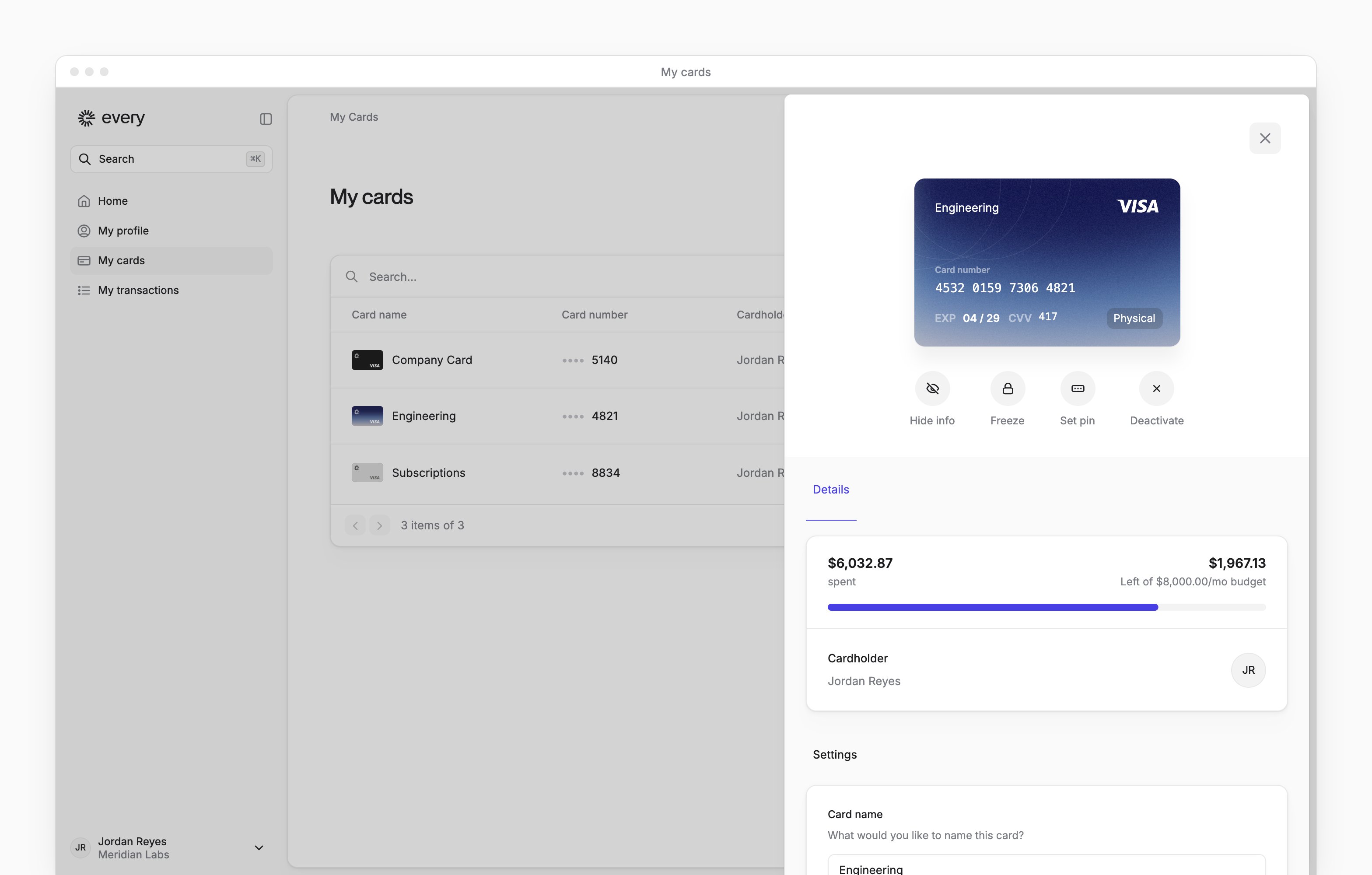
- On My cards, select the card.
- Select View info. The card shows its full number, its expiration date next to EXP and its .
Add it to Apple Wallet
1
Start a new card
In the Wallet app on your iPhone, select the Add Card button (+).
2
Choose the kind of card
Select “Debit or Credit Card”.
3
Continue
Select “Continue”.
4
Choose to enter the details
Select “Enter Card Details Manually”. For a physical card, if Wallet offers it, you can hold the card close to your iPhone instead.
5
Enter the card's details
Enter the number, expiration date and CVV from View info, then follow the steps on screen.
Add it to Google Wallet
1
Start a new card
In the Google Wallet app, select “Add to Wallet” at the bottom.
2
Choose a payment card
Select “Payment card”.
3
Choose a new card
Select “New credit or debit card”.
4
Choose to enter the details
Select “Enter details manually”.
5
Enter the card's details
Enter the number, expiration date and CVV from View info. For the billing address, use the one on the card’s Details tab.
6
Save the card
Select “Save and continue”.
7
Accept the terms
Read the issuer’s terms and select “Accept”.
What happens next
Once your card is in your wallet, you can pay in stores with Apple Pay or Google Pay.Troubleshooting
What if Apple Wallet says my issuer doesn't support this card?
What if Apple Wallet says my issuer doesn't support this card?
On My cards, check that the card is an active debit card. If it is, email support@every.io with the card’s last digits and the message, “Your issuer does not yet offer support for this card.”
What if verifying the card doesn't work?
What if verifying the card doesn't work?
Email support@every.io with the card’s last digits and the step you’re on.
Why don't I see View info?
Why don't I see View info?
View info shows only on an active card. A new physical card needs activating first: in Your new card is on the way at the top of My cards, select Activate card.If the card is frozen, open it and select Unfreeze first. A card that used up its One time limit is permanently closed and has no Unfreeze (see My cards).